

Floating widget
A pill button in the corner. Paste one snippet, write no JavaScript.
Your customers already expect a chat bubble in the corner of your site. This is the same thing, except they talk and it talks back.
It is the fastest way to get a Decibyl agent in front of real people. A phone agent needs a carrier account, a purchased number, and — in India — KYC before the first call connects. The web widget needs a script tag. You can have an agent taking live conversations on your site this afternoon and add telephony later, or never.
Floating widget
A pill button in the corner. Paste one snippet, write no JavaScript.
Inline component
A panel inside a <div> you place — hero section, support tab, pricing page.
Headless
No UI at all. Your buttons, your design system, our audio pipeline.
That is the whole integration for Floating mode. The rest of this page is the detail for the other two and the JavaScript API underneath all three.
Add your voice agent to any website using the Configure Widget dialog in your agent’s settings.
Step 1: Open the agent settings by clicking the gear icon in the top-right of the agent editor.
Step 2: Scroll to the Add to Website section and click Configure Widget.
Step 3: Enable embedding, add your website’s domain to Allowed Domains, choose Floating Widget, Inline Component, or Headless (Bring Your Own UI), customize the button (position, color, text) if applicable, and click Save Configurations.
Step 4: Copy the generated embed code and paste it into your web page to test your agent.
| Mode | What it renders | When to use |
|---|---|---|
| Floating Widget | A pill-shaped CTA button anchored to a corner of the page. | You want a turn-key chat-bubble experience that doesn’t disturb your existing layout. |
| Inline Component | A panel rendered inside a <div id="decibyl-inline-container"> that you place in your page. | You want the agent embedded in a specific section (landing-page hero, support tab, etc.). |
| Headless | No UI. Only the audio pipeline plus a JavaScript API on window.DecibylWidget. | You want full control over the UI — your own buttons, design system, framework state, animations. |
These apply to all three modes:
http://localhost. Browsers refuse microphone access on plain HTTP origins or file://.localhost) — otherwise the widget’s config and signaling requests are rejected. Leave the list empty to allow all domains.<script> tag that loads decibyl-widget.js asynchronously. The widget auto-initializes once it loads and exposes window.DecibylWidget. Code that registers callbacks must wait for the widget to be available.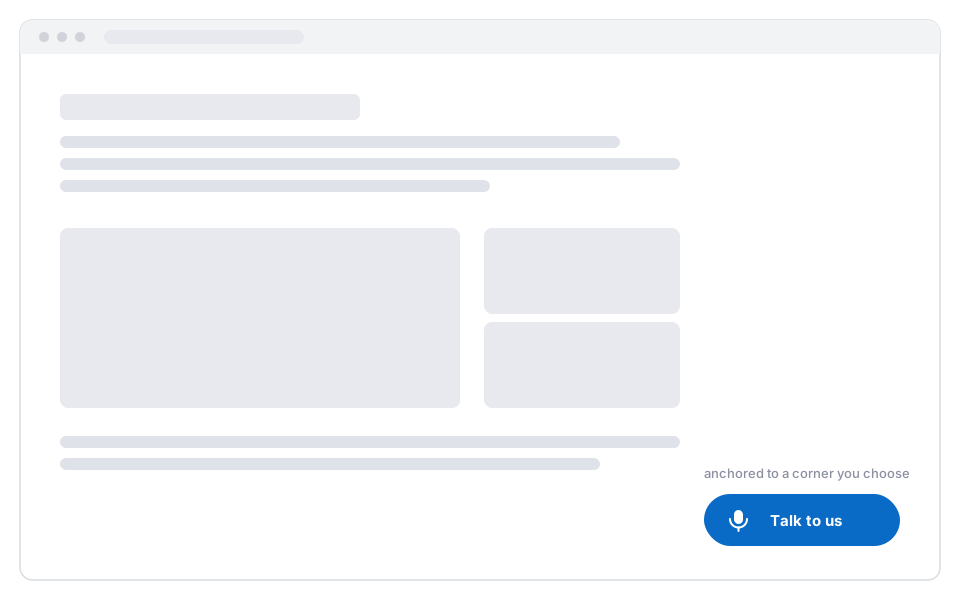
Renders a pill-shaped button (microphone icon + text) anchored to a corner of the page. Clicking it starts a call; clicking again ends it. The button auto-updates its label and color across the call lifecycle: configured text → “Connecting…” → “End Call” → “Retry” on failure.
Configure Button Text, Button Color, and Position (top/bottom + left/right) from the dashboard.
The host page writes no JavaScript — pasting the embed snippet is the entire integration. If you want to subscribe to call lifecycle events (e.g. analytics), see Lifecycle callbacks below
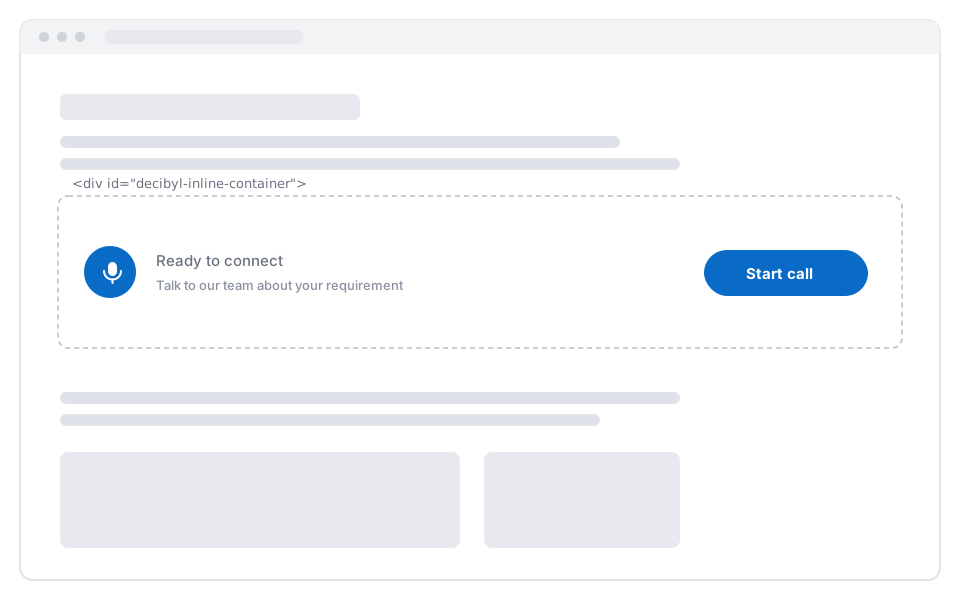
Renders a panel (status icon + status text + CTA button) inside a <div> you place in your page. Status changes update the panel in place.
Configure Button Text, Button Color, and Call to Action Text from the dashboard.
Place a container <div> where you want the widget to render. The widget auto-attaches to it.
<!-- Paste the decibyl embed snippet from the dashboard somewhere on the page --><div id="decibyl-inline-container"></div>Because React mounts after the widget script may have already loaded, integrate via initInline on first mount and refresh on remount. Poll for window.DecibylWidget to handle the async script load.
import { useEffect } from 'react';
declare global {  interface Window {    DecibylWidget?: {      initInline: (options: { container: HTMLElement }) => void;      refresh: () => void;      getState: () => { isInitialized: boolean };    };  }}
export function Assistant() {  useEffect(() => {    let retries = 0;    const tryInit = () => {      const container = document.getElementById('decibyl-inline-container');      if (window.DecibylWidget && container) {        const { isInitialized } = window.DecibylWidget.getState();        if (isInitialized) window.DecibylWidget.refresh();        else window.DecibylWidget.initInline({ container });      } else if (retries++ < 50) {        setTimeout(tryInit, 100);      }    };    tryInit();  }, []);
  return <div id="decibyl-inline-container" />;}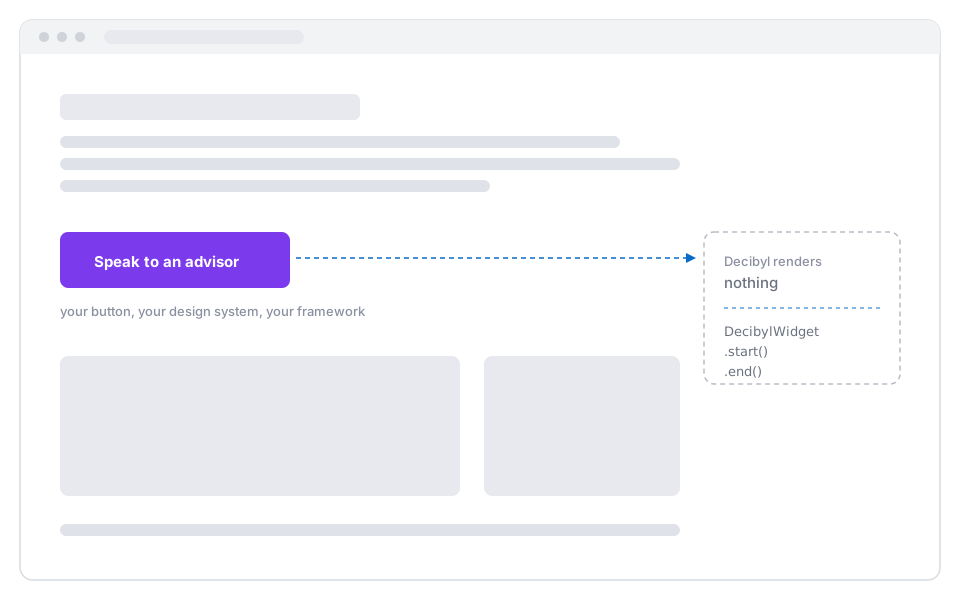
In Headless mode the widget injects no UI of its own. You render whatever buttons, banners, or in-call indicators you want, and call the JavaScript API to start and end calls.
| Method / Callback | Description |
|---|---|
window.DecibylWidget.start() | Begin a voice call. Must be called from inside a user-gesture handler (e.g. click) so the browser grants microphone access. |
window.DecibylWidget.end() | End the active call. |
window.DecibylWidget.onCallStart(cb) | Fires when start() is invoked (status connecting). No payload. |
window.DecibylWidget.onCallConnected(cb) | Fires when the WebRTC connection is established. Payload: { agentId, workflowRunId, token }. |
window.DecibylWidget.onCallDisconnected(cb) | Fires only if the call had connected, when teardown runs. Payload: { agentId, workflowRunId, token, durationSeconds }. |
window.DecibylWidget.onCallEnd(cb) | Fires whenever the call session is torn down (including failed-to-connect attempts). No payload. |
window.DecibylWidget.onStatusChange(cb) | Fires on every status change. Callback receives (status, text, subtext). Status values: idle, connecting, connected, failed. |
window.DecibylWidget.onError(cb) | Fires on errors (mic permission denied, server error, etc.). Callback receives an Error object. |
All on* setters are single-listener — calling the same one again replaces the previous handler.
<button id="talk-btn">Talk to AI</button>
<script>  let callStatus = 'idle';  const btn = document.getElementById('talk-btn');
  function render() {    btn.textContent =      callStatus === 'connected' ? 'End Call'      : callStatus === 'connecting' ? 'Connecting…'      : callStatus === 'failed' ? 'Retry'      : 'Talk to AI';  }
  window.DecibylWidget.onStatusChange((status) => {    callStatus = status;    render();  });
  window.DecibylWidget.onError((err) => {    console.error('Decibyl error:', err.message);  });
btn.addEventListener('click', () => { if (callStatus === 'connected' || callStatus === 'connecting') { window.DecibylWidget.end(); } else { window.DecibylWidget.start(); } });</script>import { useEffect, useState } from 'react';
type CallStatus = 'idle' | 'connecting' | 'connected' | 'failed';
declare global { interface Window { DecibylWidget: { start: () => void; end: () => void; onStatusChange: (cb: (status: CallStatus, text?: string, subtext?: string) => void) => void; onError: (cb: (err: Error) => void) => void; }; }}
export function TalkButton() { const [status, setStatus] = useState<CallStatus>('idle');
useEffect(() => { window.DecibylWidget.onStatusChange((s) => setStatus(s)); window.DecibylWidget.onError((err) => console.error('Decibyl error:', err.message)); }, []);
const isLive = status === 'connected' || status === 'connecting'; const label = { idle: 'Talk to AI', connecting: 'Connecting…', connected: 'End Call', failed: 'Retry' }[status];
return ( <button onClick={() => (isLive ? window.DecibylWidget.end() : window.DecibylWidget.start())}> {label} </button> );}The on* callbacks in the Headless JavaScript API work in all three embed modes, not just Headless. Use them for analytics or to trigger UI in the host page even when the widget is rendering its own UI (Floating or Inline).
window.DecibylWidget.onCallConnected(({ agentId, workflowRunId }) => {  analytics.track('voice_call_started', { agentId, workflowRunId });});
window.DecibylWidget.onCallDisconnected(({ workflowRunId, durationSeconds }) => {  analytics.track('voice_call_ended', { workflowRunId, durationSeconds });});
onCallConnected and onCallDisconnected only fire when the call actually establishes a media connection — failed-to-connect attempts (e.g. denied mic, network failure) don’t trigger them, so analytics stay clean.