

Your First Agent in 5 Minutes
By the end of this page you will have a voice agent that answers, holds a real conversation, and hangs up — and you will have talked to it yourself. No phone number, no carrier account, no code.
What you need: an account at app.decibyl.ai, a browser that can reach your microphone, and about five minutes. You do not need a balance to make a test call in the browser, and you do not need your own model keys — managed models work out of the box.
Describe what the agent should do
Open app.decibyl.ai/workflow/create. Three fields, and the third is the one that matters.
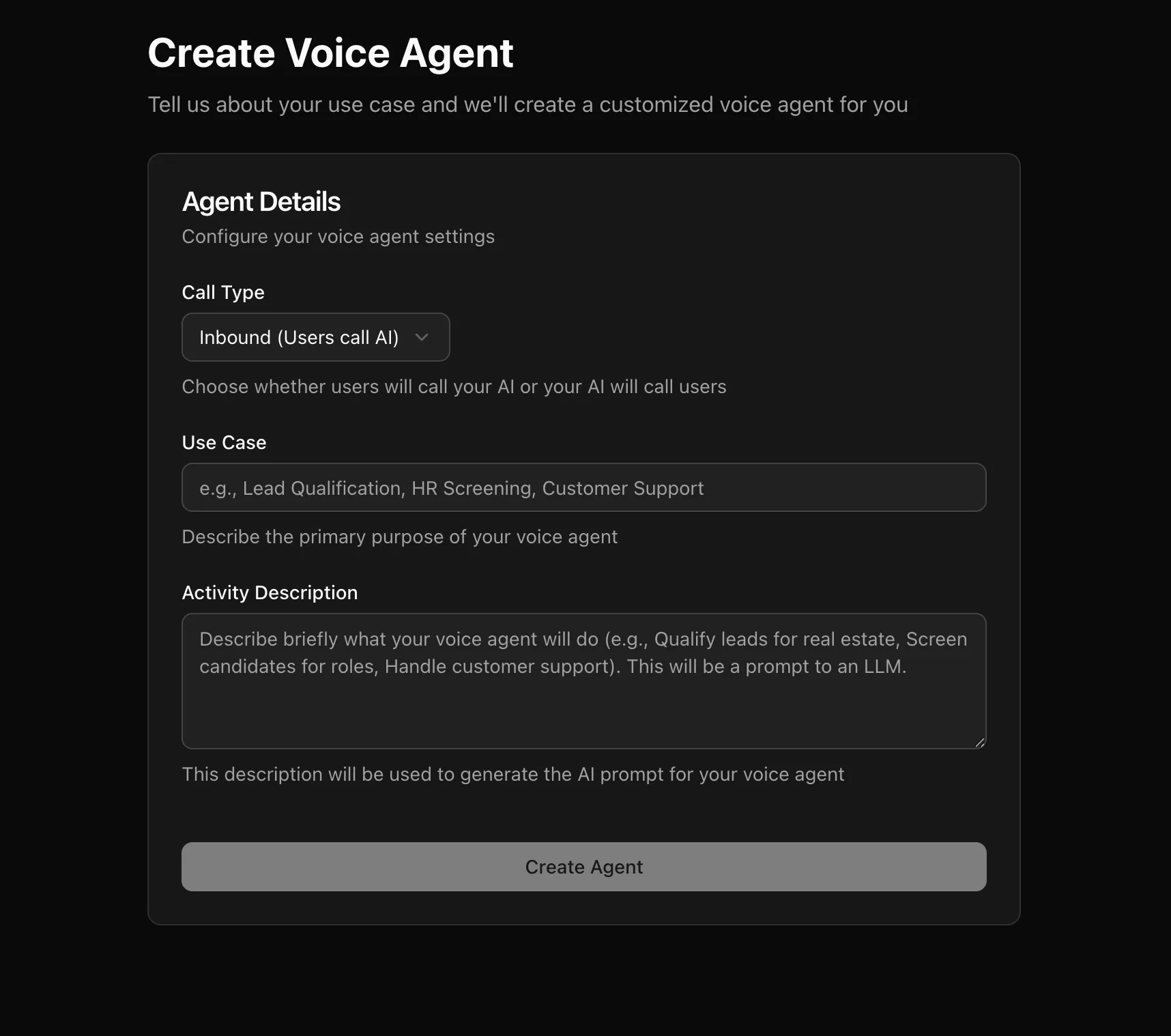
Create Voice Agent — the Activity Description is the prompt that generates your flow - Call Type — Inbound (Users call AI) or Outbound (AI calls users). It only changes the tone of the generated prompts, so either is fine for a first agent. Inbound is the easier one to test.
- Use Case — a short label, like Appointment booking or Lead qualification. This is a name, not an instruction.
- Activity Description — the actual brief. This one is sent to a language model to generate your starting flow, so specificity here is what you get back later.
Click Create Agent. Generation takes a few seconds.
Look at what it built
You land in the Voice Agent Builder with a flow already drawn: a Start Call node holding the greeting, one or more Agent nodes carrying the conversation, and an End Call node, joined by edges.
You do not need to understand the graph model yet. The short version is that each node is one step of the conversation with its own prompt, and each edge carries a plain-English condition — “the caller has given a preferred time” — that the model uses to decide when to move on.
Click any node to open its settings on the right. Have a read of the prompts it wrote. Change nothing yet.
Talk to it
Click Test Agent in the top right, stay on the Test Audio tab, and hit Run Test. Your browser will ask for microphone permission — accept it.
This is not a simulation. It runs the same pipeline a phone call runs — speech-to-text, the model, text-to-speech, the tools — with your microphone standing in for the phone line.
While the call is live you can watch three things at once:
- the transcript, as each turn is recognised;
- the current node, highlighted on the canvas as the conversation moves;
- any tool calls the agent makes, with their arguments and responses.
Talk to it like a real caller would. Then try to break it: interrupt it mid-sentence, answer a question it did not ask, ask something off-topic. How it handles that is what you are actually testing.
Change something and hear the difference
Something will have gone wrong — it always does on the first call. Find the node that was highlighted when it happened, open it, and edit its Prompt.
Click Save, then Run Test again. The change is live on the next call — there is nothing to redeploy and nothing to restart.
The three edits people make first:
- Tone or wording — in the prompt of whichever Agent node said the wrong thing.
- Something that should apply to the whole call — “never quote a price”, “always speak Hindi unless the caller starts in English” — belongs in the Global node, not repeated in every node.
- A missing step — add an Agent node and draw an edge to it, with a condition describing when the conversation should go there.
When it does not work
The agent connects and then says nothing
The Start Call node has no greeting, so the agent is waiting for you to speak first. Say hello — or open the node and give it a Greeting.
If you speak and still get silence, it is the model configuration. On your own keys, a key that is expired or out of quota fails at exactly the moment the agent tries to talk, which looks like silence rather than an error. Check Model Configurations.
The browser never asks for the microphone
Something else is holding it — another tab in a call, or a desktop meeting app.
Close those, reload the page, and start the test again. If the site is not on
https, the browser blocks microphone access outright.
The Phone Call button is greyed out
It disables itself while there are unsaved changes or validation errors. Save first; if it stays disabled, open the validation errors in the header — usually a node with an empty prompt, or an edge pointing nowhere.
It ignores something I told it to do
Check which node was active when it ignored you. An instruction written in the Start Call node does not apply three nodes later — only the Global node’s prompt reaches every step, and only on nodes that have Add Global Prompt switched on.
More in Troubleshooting.
Next steps
You have an agent that works in a browser. Everything below turns it into one that works on a phone.
Send a row of CRM data to an endpoint and have the agent make the call, already knowing who it is talking to.
Get the call data backHave Decibyl POST what the agent learned to your backend the moment the call ends.
Connect a phone numberHook up a carrier so the agent takes and makes real calls.
Put it on your websiteOne script tag and a talk button. No carrier account, no KYC.